Help

Send and reply

Use the inbox

You can receive and answer mail from a STATXE address.

  1. Open the mailbox

    Go to Inbox and pick the address you created under Create a sending address. Replies leave from that From address. If the mailbox is empty, send a test to yourself first.

  2. Find and organize messages

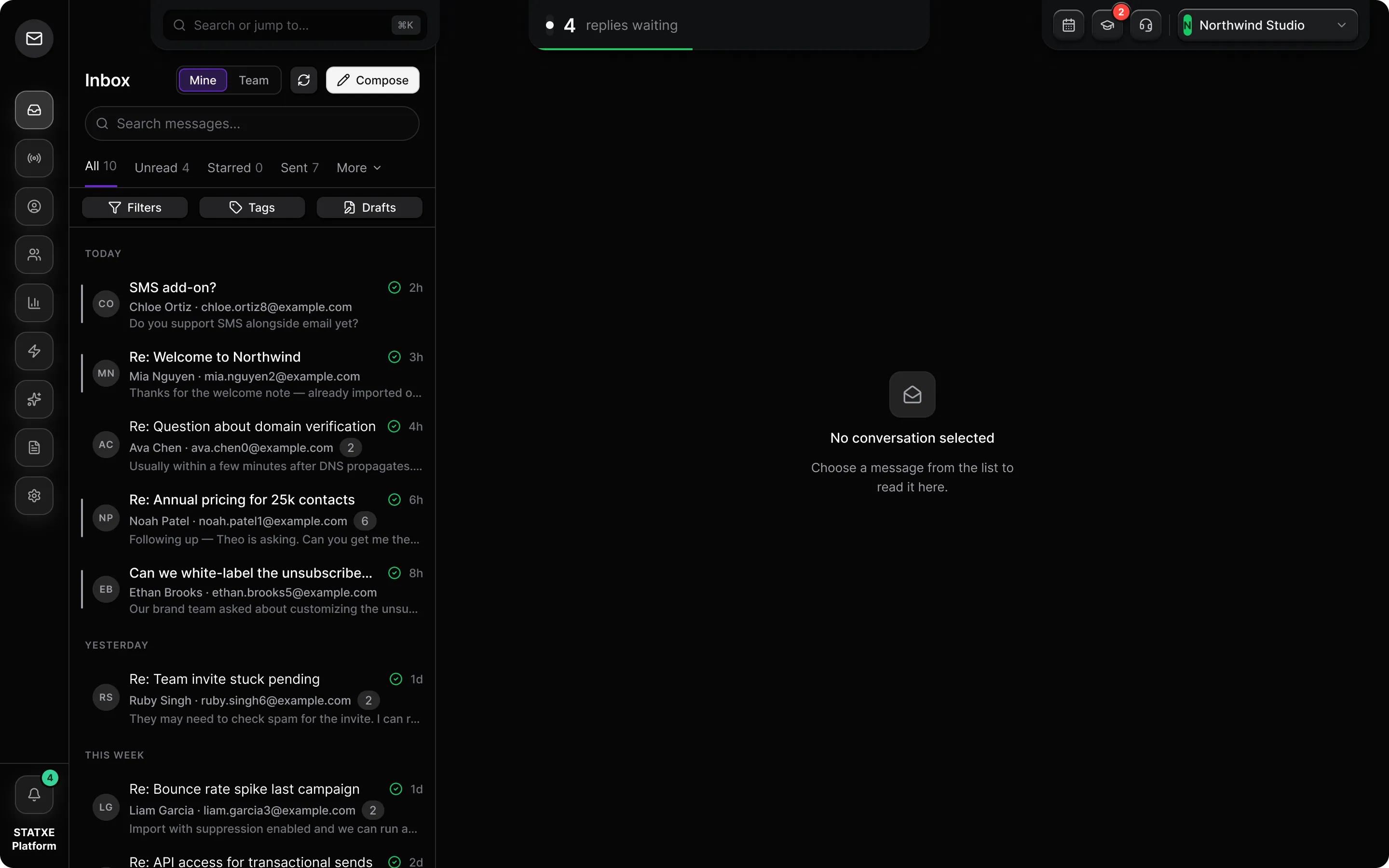
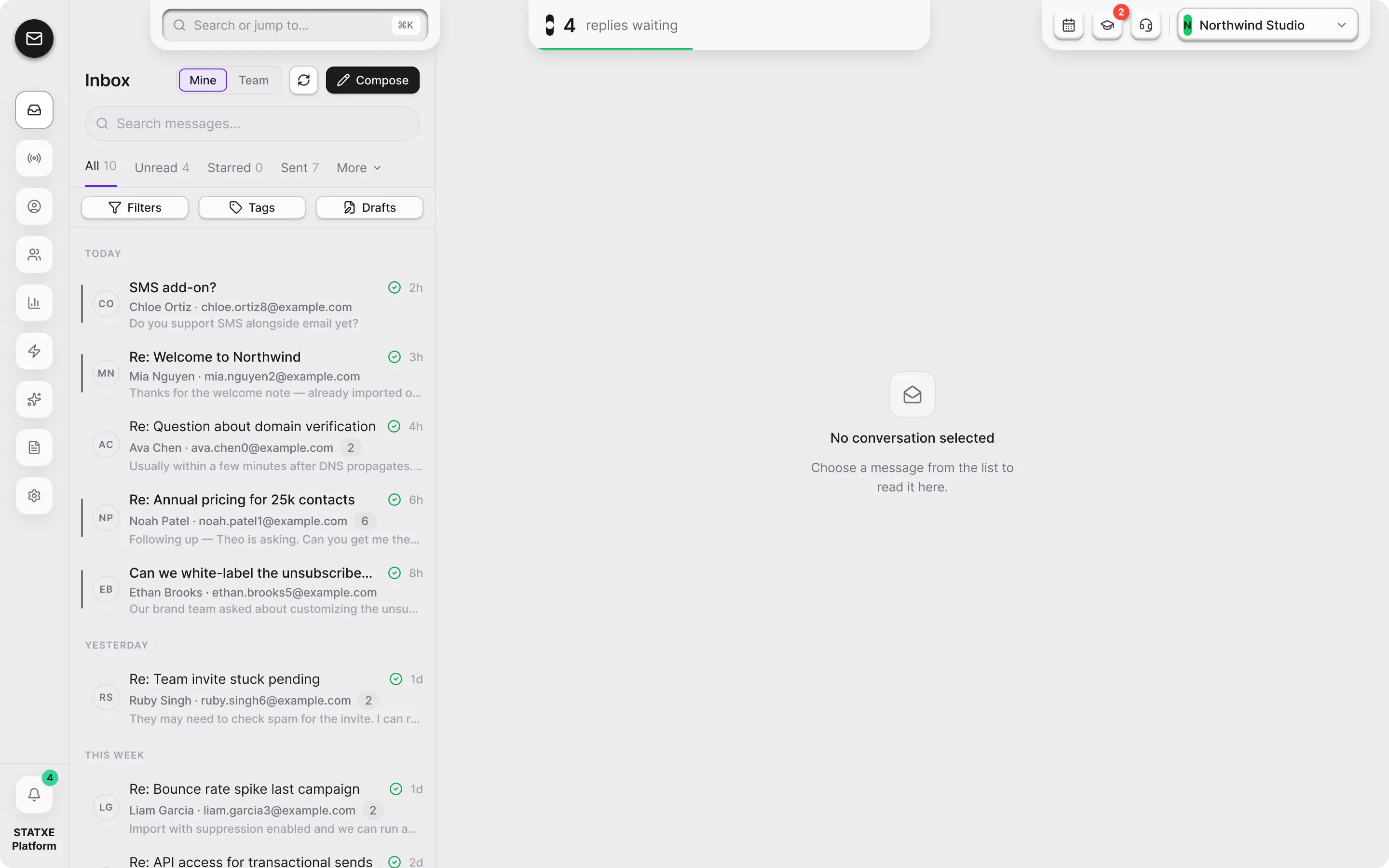
    Choose a tab to change the mailbox view: All, Unread, Starred, Sent, or Campaign. Use Filters for date, attachments, and recipient criteria. Use Tags to narrow the list further. Open Drafts to continue a saved message.

  3. Open a thread and reply

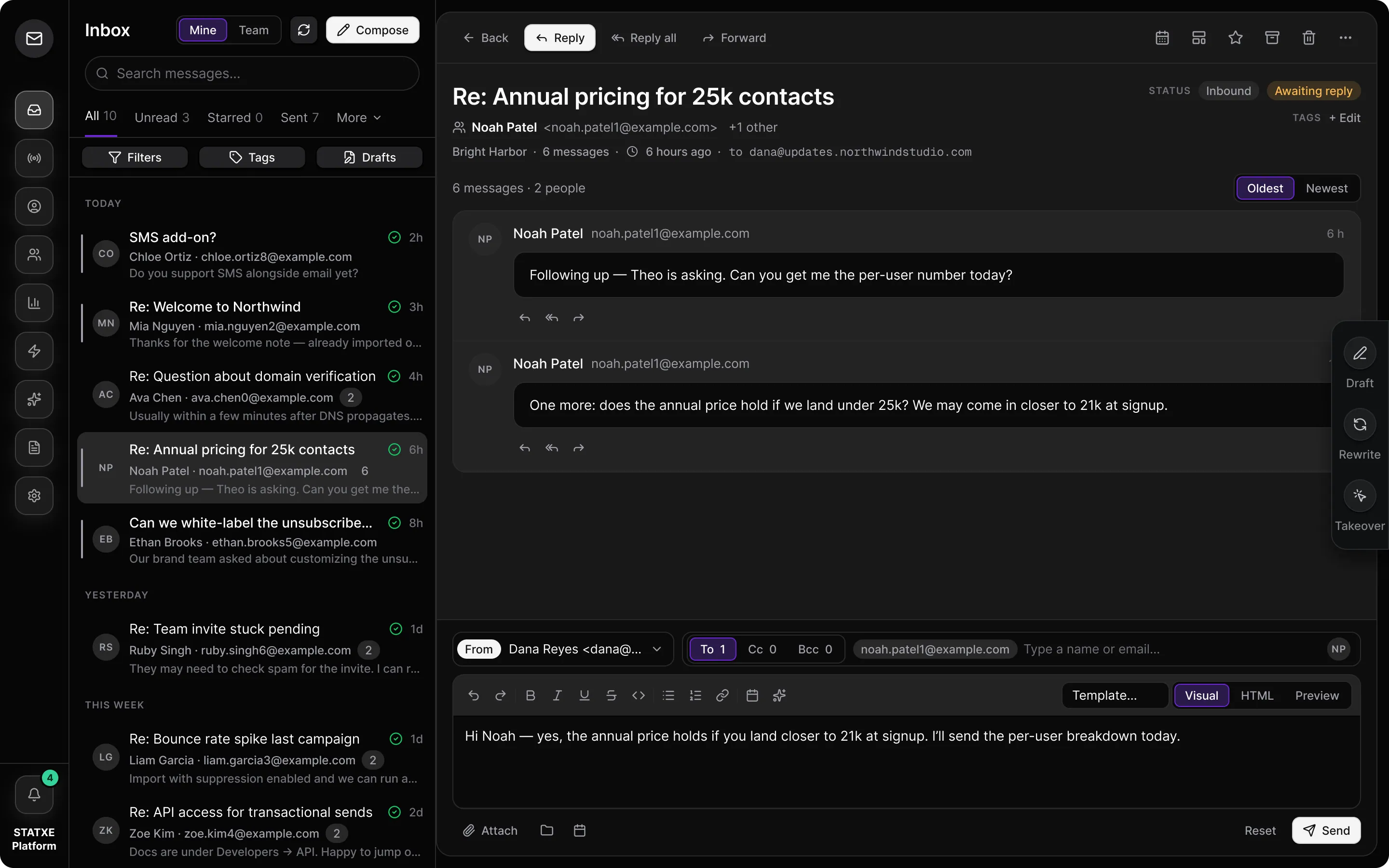
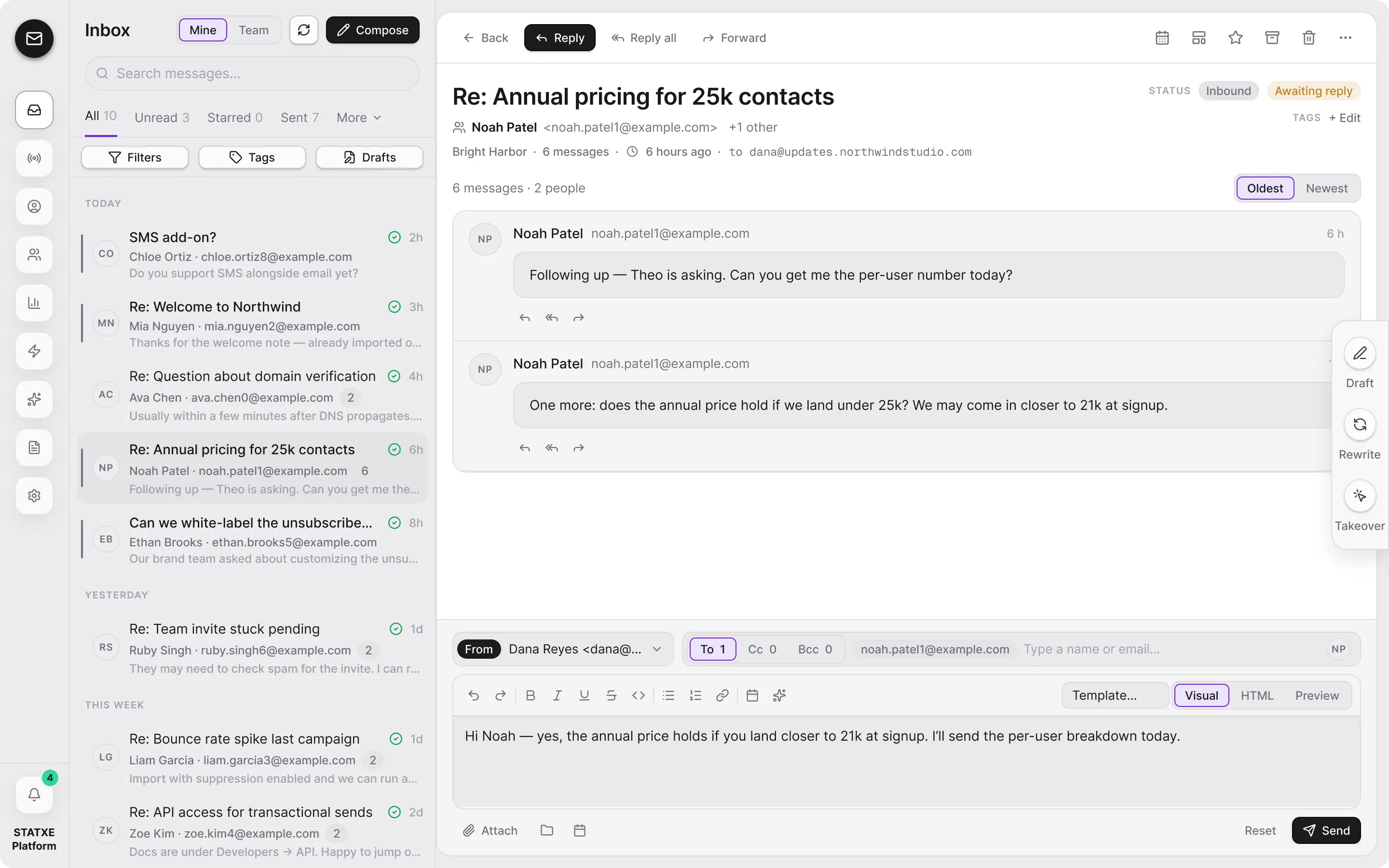
    Select a conversation to read the thread. Use Reply for the sender, Reply all for every recipient, or Forward to send the message onward. The top toolbar also includes thread tools such as Insights and Layout.

  4. Add recipients and format the message

    Open Reply details to review recipients and add CC or BCC. Choose Visual for rich text editing or HTML to edit the message source. Add an attachment if needed, then review the message before sending.

  5. Send from that address

    Click Send. The mail goes out as the mailbox you have open. Check the sent copy in the thread. If send is blocked, the domain or billing plan is not ready — finish Activate billing and domain verification first.

Filter, organize, open a conversation, then address and format a reply
Search or jump to... ⌘K
22◉ 2S STATXT
Inbox
MineTeam
Search messages...
All 50Unread 12Starred 0Sent 34Campaign 0
FiltersTagsDrafts 11
Compose
AM

contact@example.test

Question about workspace access

1h
SA

sample.sender@example.test

Getting started

4h
CF

contact@example.test

Sample conversation

1d
TM

team@example.test

A short subject line

2d
IN

inbox@example.test

Example message preview

3d
1 2

No conversation selected

Choose a message from the list to read it here.

Walkthrough playing.

Find the right work

Choose All 50, Unread 12, Starred 0, Sent 34, or Campaign 0. Use Filters for date, attachments, and recipients, then use Tags to narrow the list.

Return to saved work

Select Drafts to continue a saved message. Open a conversation from the list to read its thread, use the top tools for Insights or Layout, and choose Reply all when everyone should receive the response.

Address and format the reply

Expand Reply all details to add CC and BCC recipients. Use Visual for rich editing or HTML for source editing, review the message, then select Send.