Set up sending · Step 1
Activate billing
Billing is active and sending is unlocked.
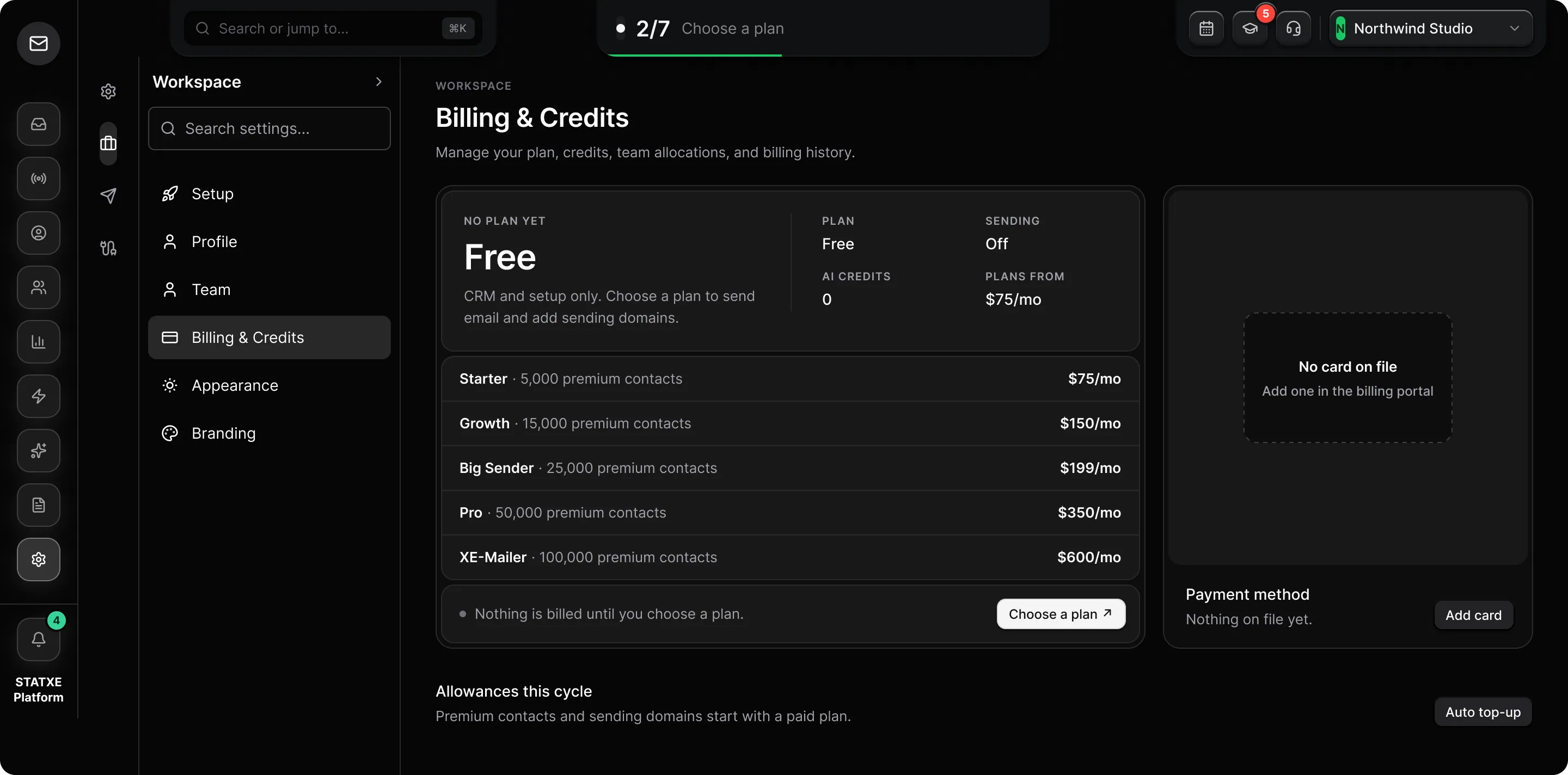
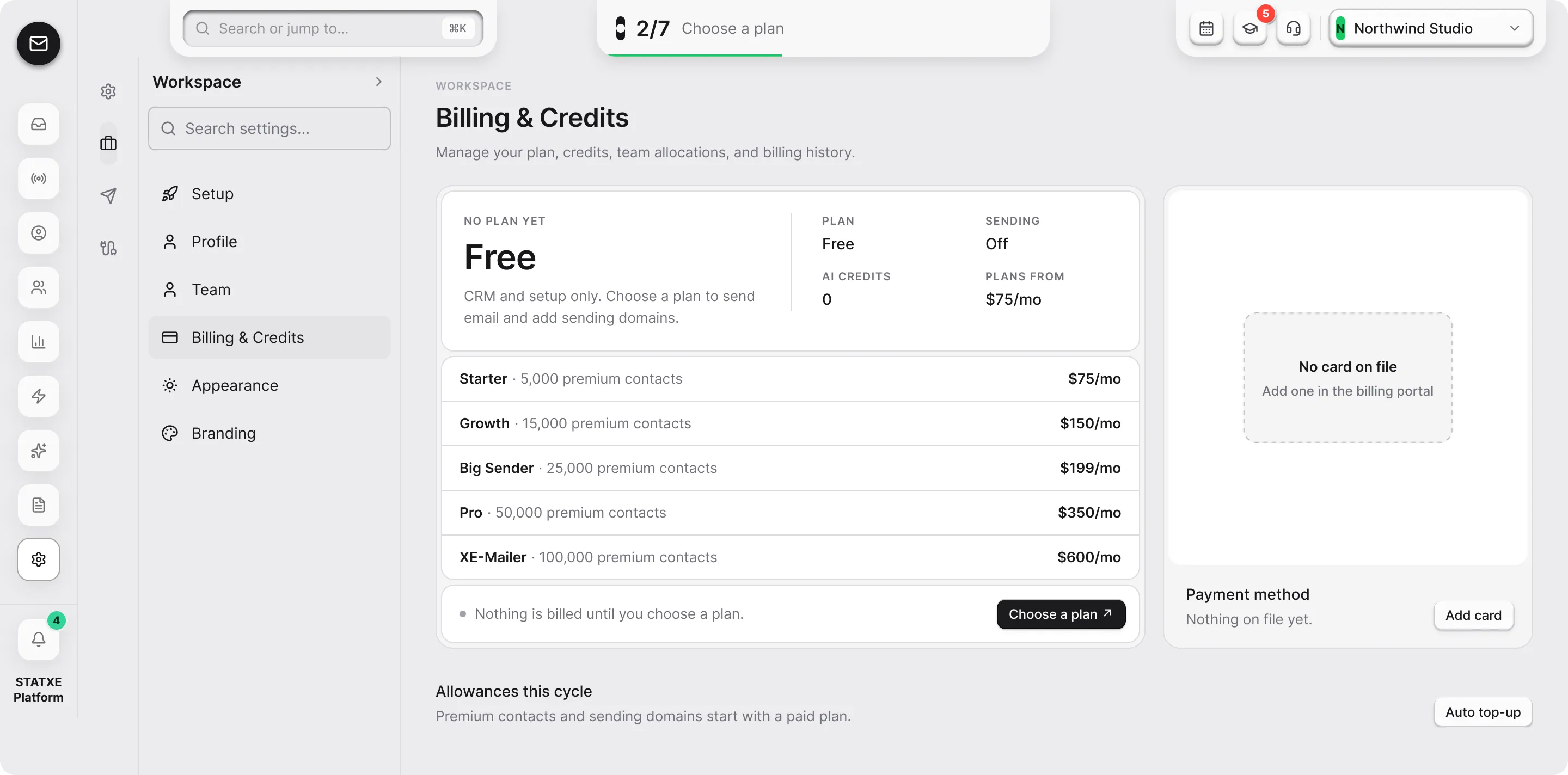
Open Billing
Go to Settings → Billing. Sending stays locked until a plan is active. The page shows Inactive and $0 until checkout finishes.
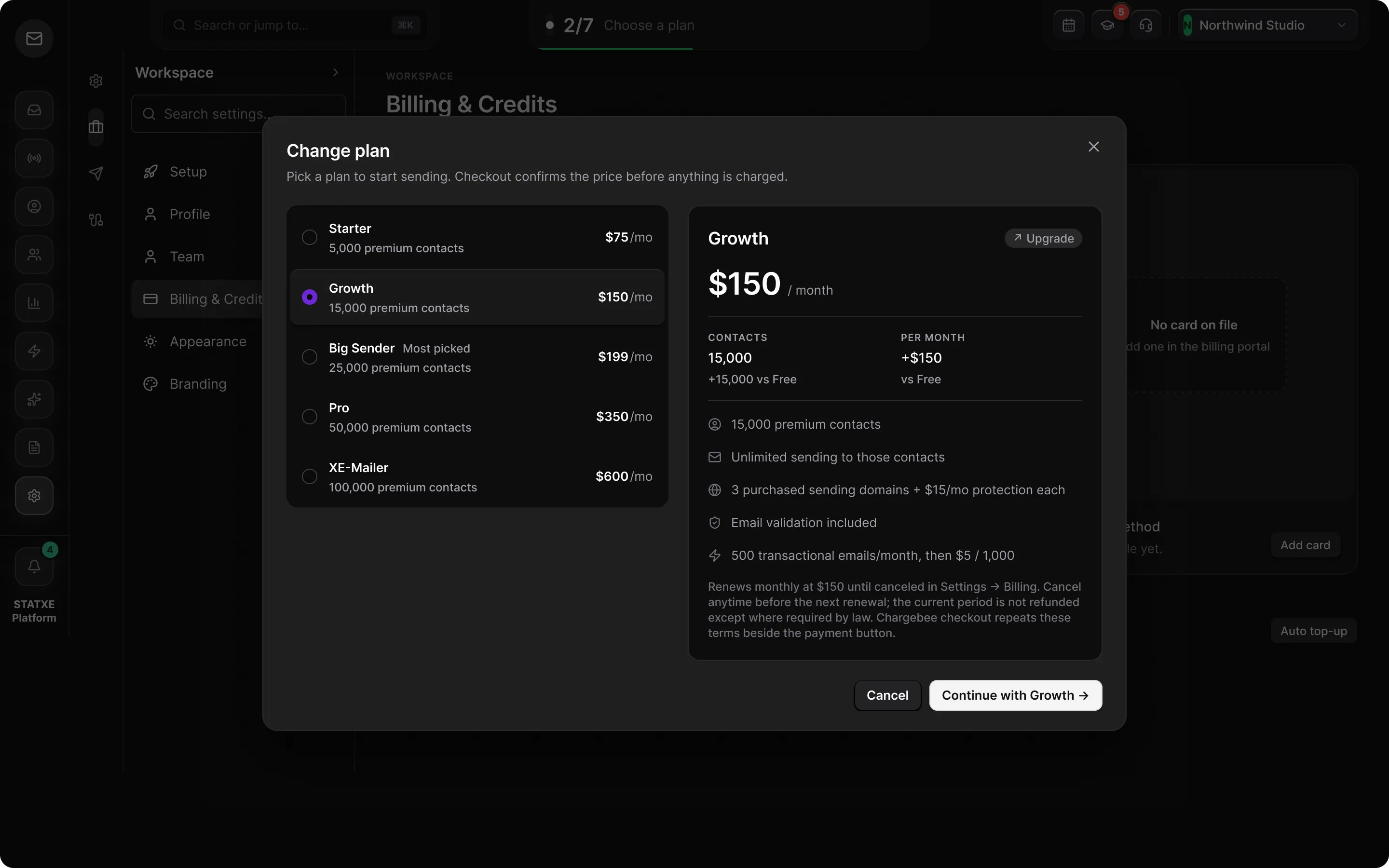
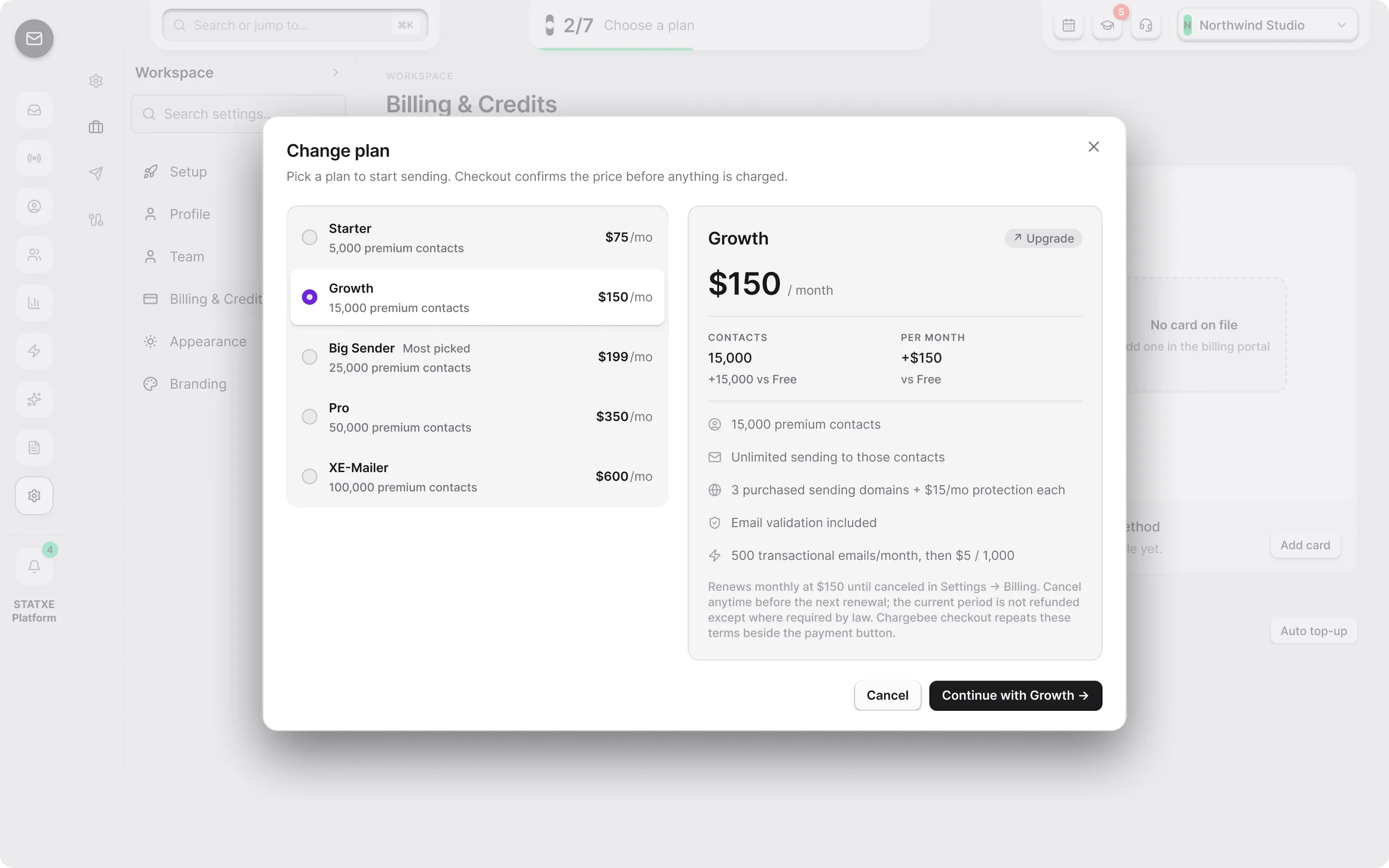
Choose a plan
Use Change plan or Compare plans. Pick the plan that matches your premium contact volume, then continue to hosted checkout. Confirming a plan starts payment.
Confirm it is active
When checkout finishes, Billing should show Active, a renewal date, and a payment method on file. You can then send from a verified address.
Save a card
Use Add payment or Update payment method. Enter the card STATXE should charge for the plan and later credit packs. Square stores the card on your billing profile.
Buy AI credits if you need them
The plan grant is not unlimited. Buy AI Credits, set a USD amount (minimum $20), and continue to checkout. These power the assistant and inbox drafts.
Buy transactional credits if you run out
Campaigns to premium contacts stay unlimited on the plan. Transactional, SMTP, and mail to non-premium contacts use the 500 included sends, then $5 per 1,000. Buy Transactional Email Credits and pick a pack.
Workspace
Billing & Credits
Manage your plan, credits, and billing history.
Current plan
InactiveNo paid plan yet
Monthly spend
No prior period yet
Renewal
Date pending
Payment method
NoneAdd payment method
Billing actions
Invoices, payment method, and plan changes.
CRM is unlimited. Validation included. 500 transactional emails/month, then $5 / 1,000.
Walkthrough playing.
Put the card on file
After the plan is Active, open Add payment and enter the card STATXE should charge for the plan and later credit packs. After Square saves it, Billing shows a payment method on file. Use a card you control.
If Payment method still says None, credit purchases will fail.
Workspace
Billing & Credits
Add the card used for the plan and later credit packs.
Add card for auto top-up
Secured by Square. Your card is stored on the billing profile for the subscription and automated credit purchases only.
Buy AI credits
The monthly AI grant is not unlimited. Buy AI Credits opens an amount in USD — minimum $20 — then hosted checkout against the card you just saved. These credits power the assistant and inbox drafts.
Purchases show up in the audit log and billing history. Auto top-up can refill the same pool later without opening this dialog every time.
Workspace
Billing & Credits
Assistant and inbox drafts spend AI credits. Buy more when the grant runs out.
Buy AI credits
Minimum $20. Confirm payment on checkout. Purchases show in audit log and billing history.
Buy transactional credits
Campaigns to premium contacts stay unlimited on the plan. Transactional mail, SMTP, and sends to non-premium contacts use the 500 included credits, then $5 per 1,000.
Buy Transactional Email Credits and pick a pack (10,000 / 50,000 / 100,000). Confirm on checkout. The pack is added after payment finishes.
Workspace
Billing & Credits
Transactional and SMTP sends use this pool after the 500 included credits.
Buy transactional email credits
Packs are $5 per 1,000. Confirm payment on checkout to add the pack.